Der Interview-Dialog
Links im iDoc führt die KI das Gespräch: Sie liefert Vorschläge, stellt Rückfragen — und schreibt das Ergebnis rechts ins Dokument.
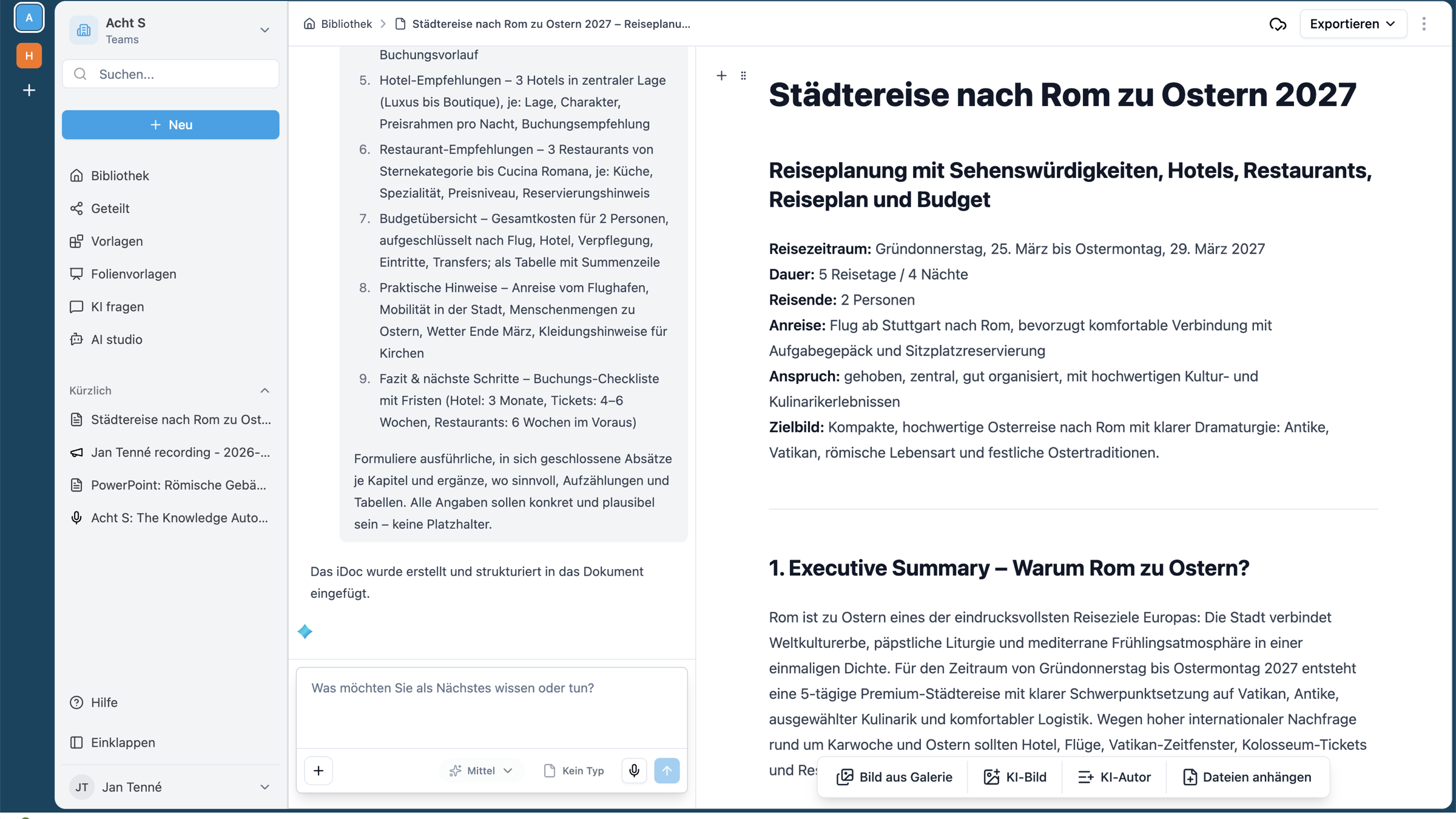
Wie der Dialog funktioniert
Die linke Spalte ist Ihre Arbeitszeile mit der KI. Sie beschreiben, was Sie wollen; die KI arbeitet am Dokument und meldet zurück, was sie getan hat. Wo die Vorlage Informationen verlangt, die noch fehlen, fragt sie nach.
Die Eingabezeile
| Element | Wofür |
|---|---|
| + | Material anhängen. |
| Intelligenz | Sofort, Mittel oder Hoch — wie gründlich die KI arbeitet. |
| Typ | Die Vorlage, nach der gearbeitet wird. |
| Mikrofon | Sprechen statt tippen. |
| Senden | Anweisung abschicken. |
Welche Intelligenz-Stufe wann?
- Sofort — schnelle Ergänzungen, Umformulierungen, kurze Abschnitte.
- Mittel — der Alltagsfall: strukturieren, zusammenfassen, ausformulieren.
- Hoch — anspruchsvolle Aufgaben, bei denen Sorgfalt vor Tempo geht.
Gut mit der KI arbeiten
- Ziel nennenKurz sagen, worauf das Dokument hinauslaufen soll.
- Rückfragen beantwortenKnapp und konkret — genau dafür ist der Dialog da.
- Abschnittsweise arbeiten„Ergänze Abschnitt 3 um …“ schlägt „mach alles besser“.
- Ergebnis rechts prüfenDas Dokument ist die Wahrheit, nicht der Chat.
Troubleshooting
Die KI schreibt am Ziel vorbei.
Meist passt der gewählte Typ nicht. Vorlage prüfen — oder im Dialog präzisieren, worum es geht.
Es dauert lange.
Höhere Intelligenz-Stufen brauchen mehr Zeit. Für schnelle Änderungen Sofort wählen.
Verwandtes
The interview dialogue
On the left of the iDoc the AI runs the conversation: it suggests, asks back — and writes the result into the document on the right.
How the dialogue works
The left column is your working line with the AI. You describe what you want; the AI works on the document and reports what it did. Wherever the template requires information that is still missing, it asks.
The input line
| Element | What for |
|---|---|
| + | Attach material. |
| Intelligence | Instant, Medium or High — how thoroughly the AI works. |
| Type | The template being followed. |
| Microphone | Speak instead of type. |
| Send | Submit the instruction. |
Which intelligence level when?
- Instant — quick additions, rewordings, short passages.
- Medium — the everyday case: structure, summarise, write out.
- High — demanding tasks where care beats speed.
Working well with the AI
- State the goalBriefly say what the document should amount to.
- Answer the questionsShort and concrete — that is what the dialogue is for.
- Work section by section“Extend section 3 with …” beats “make it all better”.
- Check the result on the rightThe document is the truth, not the chat.
Troubleshooting
The AI misses the point.
Usually the chosen type doesn't fit. Check the template — or clarify in the dialogue what it is about.
It takes a long time.
Higher intelligence levels need more time. For quick changes choose Instant.
Related
Le dialogue d'interview
À gauche dans l'iDoc, l'IA mène la conversation : elle propose, pose des questions de suivi — et écrit le résultat à droite dans le document.
Comment fonctionne le dialogue
La colonne de gauche est votre ligne de travail avec l'IA. Vous décrivez ce que vous voulez ; l'IA travaille sur le document et vous rend compte de ce qu'elle a fait. Là où la Vorlage exige des informations encore manquantes, elle pose la question.
La ligne de saisie
| Élément | À quoi ça sert |
|---|---|
| + | Joindre du matériel. |
| Intelligence | Immédiat, Moyen ou Élevé — le degré de minutie du travail de l'IA. |
| Type | La Vorlage selon laquelle le travail est effectué. |
| Microphone | Parler au lieu de taper. |
| Envoyer | Soumettre l'instruction. |
Quel niveau d'intelligence et quand ?
- Immédiat — compléments rapides, reformulations, courts passages.
- Moyen — le cas quotidien : structurer, résumer, rédiger.
- Élevé — tâches exigeantes, où le soin prime sur la rapidité.
Bien travailler avec l'IA
- Énoncer l'objectifDites brièvement vers quoi le document doit aboutir.
- Répondre aux questions de suiviDe façon concise et concrète — c'est précisément à cela que sert le dialogue.
- Travailler par sections« Complète la section 3 avec … » vaut mieux que « améliore tout ».
- Vérifier le résultat à droiteLe document est la vérité, pas le chat.
Dépannage
L'IA passe à côté de l'objectif.
Le plus souvent, le type choisi ne convient pas. Vérifiez la Vorlage — ou précisez dans le dialogue de quoi il s'agit.
Cela prend du temps.
Les niveaux d'intelligence plus élevés demandent plus de temps. Pour des modifications rapides, choisissez Immédiat.
En lien
Dialog wywiadu
Po lewej w iDoc AI prowadzi rozmowę: podsuwa propozycje, dopytuje — i zapisuje wynik po prawej w dokumencie.
Jak działa dialog
Lewa kolumna to Twój wiersz pracy z AI. Opisujesz, czego chcesz; AI pracuje nad dokumentem i zgłasza, co zrobiła. Tam, gdzie szablon wymaga informacji, których jeszcze brakuje, dopytuje.
Wiersz wprowadzania
| Element | Do czego |
|---|---|
| + | Dołącz materiał. |
| Inteligencja | Natychmiast, Średnio lub Wysoko — jak dokładnie AI pracuje. |
| Typ | Szablon, według którego następuje praca. |
| Mikrofon | Mów zamiast pisać. |
| Wyślij | Wyślij polecenie. |
Który poziom inteligencji kiedy?
- Natychmiast — szybkie uzupełnienia, przeformułowania, krótkie fragmenty.
- Średnio — przypadek codzienny: strukturyzowanie, streszczanie, formułowanie.
- Wysoko — wymagające zadania, gdzie staranność ma pierwszeństwo przed tempem.
Dobra praca z AI
- Nazwij celKrótko powiedz, do czego dokument ma prowadzić.
- Odpowiadaj na pytaniaZwięźle i konkretnie — właśnie po to jest dialog.
- Pracuj fragmentami„Uzupełnij fragment 3 o …” bije „popraw wszystko”.
- Sprawdzaj wynik po prawejDokument to prawda, nie czat.
Rozwiązywanie problemów
AI pisze obok celu.
Najczęściej nie pasuje wybrany typ. Sprawdź szablon — albo doprecyzuj w dialogu, o co chodzi.
Trwa długo.
Wyższe poziomy inteligencji potrzebują więcej czasu. Do szybkich zmian wybierz Natychmiast.
Powiązane
Il dialogo dell'intervista
A sinistra nell'iDoc l'IA conduce la conversazione: fornisce proposte, pone domande di chiarimento — e scrive il risultato a destra nel documento.
Come funziona il dialogo
La colonna di sinistra è la sua riga di lavoro con l'IA. Lei descrive ciò che desidera; l'IA lavora al documento e riferisce cosa ha fatto. Laddove la Vorlage richiede informazioni ancora mancanti, le chiede.
La riga di immissione
| Elemento | A cosa serve |
|---|---|
| + | Allegare materiale. |
| Intelligenza | Immediata, Media o Alta — quanto accuratamente lavora l'IA. |
| Tipo | La Vorlage secondo cui si lavora. |
| Microfono | Parlare invece di digitare. |
| Invia | Inviare l'istruzione. |
Quale livello di intelligenza quando?
- Immediata — integrazioni rapide, riformulazioni, brevi sezioni.
- Media — il caso quotidiano: strutturare, riassumere, articolare.
- Alta — compiti impegnativi, in cui l'accuratezza conta più della velocità.
Lavorare bene con l'IA
- Indicare l'obiettivoDire brevemente a cosa deve puntare il documento.
- Rispondere alle domande di chiarimentoIn modo conciso e concreto — è esattamente lo scopo del dialogo.
- Lavorare per sezioni„Integra la sezione 3 con …“ batte „migliora tutto“.
- Verificare il risultato a destraIl documento è la verità, non la chat.
Risoluzione dei problemi
L'IA scrive fuori tema.
Di solito il tipo scelto non è adeguato. Verifichi la Vorlage — oppure precisi nel dialogo di cosa si tratta.
Ci mette molto tempo.
I livelli di intelligenza più alti richiedono più tempo. Per modifiche rapide scelga Immediata.
Correlati
De interviewdialoog
Links in het iDoc voert de KI het gesprek: ze levert voorstellen, stelt vervolgvragen — en schrijft het resultaat rechts in het document.
Hoe de dialoog werkt
De linkerkolom is uw werkregel met de KI. U beschrijft wat u wilt; de KI werkt aan het document en meldt terug wat ze heeft gedaan. Waar de Vorlage informatie verlangt die nog ontbreekt, vraagt ze ernaar.
De invoerregel
| Element | Waarvoor |
|---|---|
| + | Materiaal bijvoegen. |
| Intelligentie | Direct, Gemiddeld of Hoog — hoe grondig de KI werkt. |
| Type | De Vorlage waarnaar wordt gewerkt. |
| Microfoon | Spreken in plaats van typen. |
| Verzenden | Instructie versturen. |
Welk intelligentieniveau wanneer?
- Direct — snelle aanvullingen, herformuleringen, korte passages.
- Gemiddeld — het alledaagse geval: structureren, samenvatten, uitschrijven.
- Hoog — veeleisende taken waarbij zorgvuldigheid vóór snelheid gaat.
Goed met de KI werken
- Doel noemenZeg kort waar het document op moet uitkomen.
- Vervolgvragen beantwoordenBondig en concreet — daar is de dialoog juist voor.
- Per passage werken„Vul passage 3 aan met …“ wint van „maak alles beter“.
- Resultaat rechts controlerenHet document is de waarheid, niet de chat.
Probleemoplossing
De KI schrijft langs het doel heen.
Meestal past het gekozen type niet. Controleer de Vorlage — of preciseer in de dialoog waar het over gaat.
Het duurt lang.
Hogere intelligentieniveaus hebben meer tijd nodig. Kies voor snelle wijzigingen Direct.
Gerelateerd
Dialogul-interviu
În stânga, în iDoc, AI conduce conversația: oferă sugestii, pune întrebări suplimentare — și scrie rezultatul în dreapta, în document.
Cum funcționează dialogul
Coloana din stânga este linia dumneavoastră de lucru cu AI. Descrieți ce doriți; AI lucrează la document și raportează înapoi ce a făcut. Acolo unde șablonul cere informații care încă lipsesc, întreabă.
Linia de introducere
| Element | Pentru ce |
|---|---|
| + | Atașați material. |
| Inteligență | Instant, Mediu sau Ridicat — cât de temeinic lucrează AI. |
| Tip | Șablonul după care se lucrează. |
| Microfon | Vorbiți în loc să tastați. |
| Trimite | Expediați instrucțiunea. |
Ce nivel de inteligență și când?
- Instant — completări rapide, reformulări, secțiuni scurte.
- Mediu — cazul cotidian: structurare, rezumare, formulare.
- Ridicat — sarcini pretențioase, unde grija primează asupra vitezei.
Cum lucrați bine cu AI
- Numiți obiectivulSpuneți pe scurt spre ce trebuie să conducă documentul.
- Răspundeți la întrebăriConcis și concret — exact pentru asta există dialogul.
- Lucrați pe secțiuni„Completează secțiunea 3 cu …” bate „fă totul mai bine”.
- Verificați rezultatul în dreaptaDocumentul este adevărul, nu chat-ul.
Depanare
AI scrie pe lângă obiectiv.
De cele mai multe ori tipul ales nu se potrivește. Verificați șablonul — sau precizați în dialog despre ce este vorba.
Durează mult.
Nivelurile mai ridicate de inteligență au nevoie de mai mult timp. Pentru modificări rapide alegeți Instant.
Înrudite
Ο διάλογος συνέντευξης
Αριστερά στο iDoc, η AI διεξάγει τη συζήτηση: παρέχει προτάσεις, θέτει διευκρινιστικές ερωτήσεις — και γράφει το αποτέλεσμα δεξιά στο έγγραφο.
Πώς λειτουργεί ο διάλογος
Η αριστερή στήλη είναι η γραμμή εργασίας σας με την AI. Περιγράφετε τι θέλετε· η AI εργάζεται στο έγγραφο και σας αναφέρει τι έκανε. Όπου το πρότυπο απαιτεί πληροφορίες που ακόμη λείπουν, ρωτά.
Η γραμμή εισαγωγής
| Στοιχείο | Για τι |
|---|---|
| + | Επισύναψη υλικού. |
| Ευφυΐα | Άμεση, Μέτρια ή Υψηλή — πόσο ενδελεχώς εργάζεται η AI. |
| Τύπος | Το πρότυπο σύμφωνα με το οποίο γίνεται η εργασία. |
| Μικρόφωνο | Ομιλία αντί για πληκτρολόγηση. |
| Αποστολή | Αποστολή της οδηγίας. |
Ποιο επίπεδο ευφυΐας πότε;
- Άμεση — γρήγορες προσθήκες, αναδιατυπώσεις, σύντομες ενότητες.
- Μέτρια — η καθημερινή περίπτωση: δόμηση, σύνοψη, διατύπωση.
- Υψηλή — απαιτητικές εργασίες, όπου η επιμέλεια προηγείται της ταχύτητας.
Καλή συνεργασία με την AI
- Αναφορά στόχουΠείτε σύντομα σε τι πρέπει να καταλήγει το έγγραφο.
- Απάντηση σε διευκρινιστικές ερωτήσειςΣύντομα και συγκεκριμένα — ακριβώς γι' αυτό υπάρχει ο διάλογος.
- Εργασία κατά ενότηταΤο «Συμπλήρωσε την ενότητα 3 με …» υπερτερεί του «κάνε τα όλα καλύτερα».
- Έλεγχος αποτελέσματος δεξιάΤο έγγραφο είναι η αλήθεια, όχι το chat.
Αντιμετώπιση προβλημάτων
Η AI γράφει εκτός στόχου.
Συνήθως ο επιλεγμένος τύπος δεν ταιριάζει. Ελέγξτε το πρότυπο — ή διευκρινίστε στον διάλογο περί τίνος πρόκειται.
Διαρκεί πολύ.
Τα υψηλότερα επίπεδα ευφυΐας χρειάζονται περισσότερο χρόνο. Για γρήγορες αλλαγές επιλέξτε Άμεση.
Σχετικά
حوار المقابلة
على يسار الـ iDoc يدير الذكاء الاصطناعي الحديث: يقدّم اقتراحات، ويطرح أسئلة استيضاحية — ويكتب النتيجة على اليمين في المستند.
كيف يعمل الحوار
العمود الأيسر هو سطر عملك مع الذكاء الاصطناعي. أنت تصف ما تريد؛ والذكاء الاصطناعي يعمل على المستند ويُبلغ بما فعله. حيثما تتطلب القالب معلومات لا تزال مفقودة، يسأل عنها.
سطر الإدخال
| العنصر | لماذا |
|---|---|
| + | إرفاق مادة. |
| الذكاء | فوري أو متوسط أو عالٍ — مدى دقة عمل الذكاء الاصطناعي. |
| النوع | القالب الذي يُعمل بموجبه. |
| الميكروفون | التحدّث بدل الكتابة. |
| إرسال | إرسال التعليمات. |
أيّ درجة ذكاء ومتى؟
- فوري — إضافات سريعة، إعادة صياغة، مقاطع قصيرة.
- متوسط — الحالة اليومية: التنظيم، التلخيص، الصياغة.
- عالٍ — المهام الصعبة التي تتقدّم فيها الدقة على السرعة.
العمل الجيد مع الذكاء الاصطناعي
- حدّد الهدفقل باختصار إلامَ ينبغي أن ينتهي المستند.
- أجب عن الأسئلة الاستيضاحيةبإيجاز وتحديد — فلهذا وُجد الحوار تماماً.
- اعمل مقطعاً بمقطع„أضِف إلى المقطع 3 …“ أفضل من „اجعل كل شيء أفضل“.
- افحص النتيجة على اليمينالمستند هو الحقيقة، لا المحادثة.
حل المشكلات
الذكاء الاصطناعي يكتب بعيداً عن الهدف.
غالباً لا يناسب النوع المختار. افحص القالب — أو وضّح في الحوار عمّا يدور الأمر.
الأمر يستغرق وقتاً طويلاً.
تحتاج درجات الذكاء الأعلى إلى وقت أطول. للتغييرات السريعة اختر فوري.
ذات صلة
访谈对话
在 iDoc 的左侧,AI 主导对话:它提供建议、提出追问——并把结果写入右侧的文档中。
对话如何运作
左侧一栏是您与 AI 的工作区。您描述自己想要什么;AI 在文档上工作,并反馈它做了什么。凡是Vorlage要求但仍缺失的信息,它都会主动询问。
输入栏
| 元素 | 用途 |
|---|---|
| + | 附加材料。 |
| 智能程度 | 即时、中等或高——AI 工作的细致程度。 |
| 类型 | 据以工作的 Vorlage。 |
| 麦克风 | 用说的代替打字。 |
| 发送 | 提交指令。 |
何时使用哪个智能等级?
- 即时——快速补充、改写措辞、简短段落。
- 中等——日常情形:结构化、总结、展开成文。
- 高——要求较高的任务,此时精细胜于速度。
与 AI 良好协作
- 说明目标简短说明文档最终要落到什么上。
- 回答追问简洁而具体——对话正是为此而设。
- 分段工作「为第 3 节补充……」胜过「把一切改得更好」。
- 在右侧检查结果文档才是准绳,而非聊天。
疑难排查
AI 写偏了目标。
多半是所选的类型不合适。请检查 Vorlage——或在对话中把要点讲得更精确。
耗时较长。
较高的智能等级需要更多时间。若要快速修改,请选择即时。